Part 1 of the Beyond Port 1433 series. New here? Start with Part 0.
Before I even touched anything related to Azure, I needed to make sure that nothing I did could impact my Wi-Fi at home. The whole reason why I love home lab environments so much is because it is contained end to end. If I break something in my lab, it’s comforting to know that nothing important will ever be in that blast radius. This post is all about hitting the prerequisites that don’t touch anything important like setting up an isolated lab network, save points for my existing VMs, license checks, and creating an Azure subscription that doesn’t touch anything else.
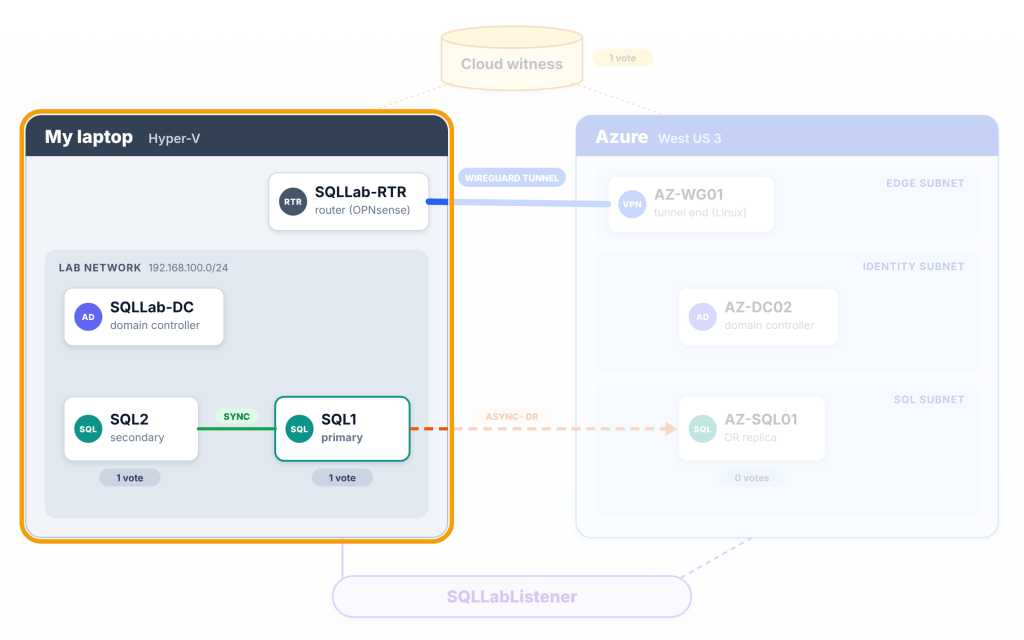
Part 1 lives entirely on the left which is the lab on my laptop.
Creating Two Networks That Never Touch
So, in Part 0, I mentioned being able to set up your home lab with the PowerShell scripts I have in my GitHub. That is the foundation of this whole thing, so I’d recommend starting there. I even wrote a blog about it talking about how to run those scripts.
This is a Brownfield architecture, so I am going to be modifying my existing home lab, leveraging the existing infrastructure and expanding upon it to reach Azure. The lab runs on an internal Hyper-V switch called SQLLabSwitch. That runs on 192.168.100.0/24. The home Wi-Fi is on 192.168.0.0/24. Those are different ranges and nothing is bridged.
For those who don’t know, /24 means that the first three numbers are the network, and the last number (1 to 254) is the device. So, 192.168.100.x and 192.168.0.x are in different neighborhoods (subnets). It is important that these ranges in the home lab do not overlap. If the lab and the home use the same range, traffic wouldn’t know which way to go. This is going to be an important aspect to remember for Part 2 when we add Azure (10.20.0.0/16) into the mix.
I mentioned before an “internal Hyper-V switch”. That word internal matters because an internal switch connects the VMs and the laptop but nothing else. The Wi-Fi adapter is never bridged into Hyper-V so the home router never sees a lab VM.
BUT, the lab still needs internet. And that’s what the router VM and Hyper-V’s Default Switch solve (stay tuned for Part 3).
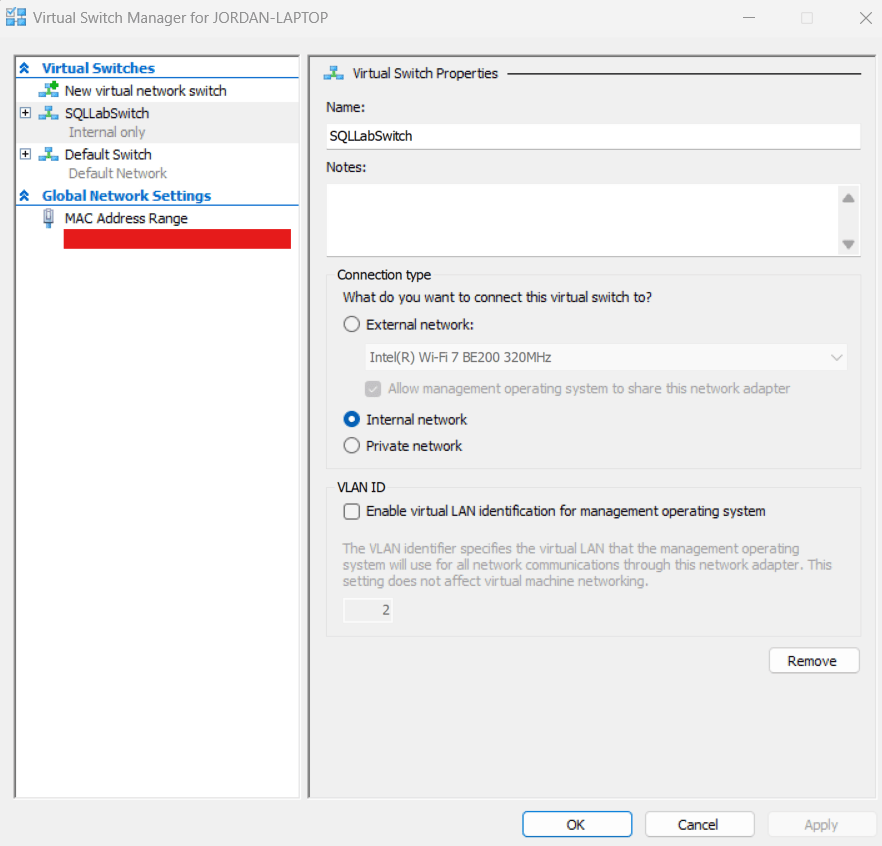
Internal means the lab and my laptop, nothing else.
Create Your Save Points
Before we change anything, we need to take backups (every DBA’s favorite task ;)). We need to checkpoint every lab VM. This will create a save point that we can roll back to.
Checkpoint-VM -Name SQLLab-DC, SQLLab-SQL1, SQLLab-SQL2 -SnapshotName 'Before hybrid project'Get-VMSnapshot -VMName SQLLab-DC, SQLLab-SQL1, SQLLab-SQL2 | Format-Table VMName, Name, CreationTime
The important thing to note here is that the rollback, should we need it should be done together. That way the state of all VMs will be the same before we change any settings.
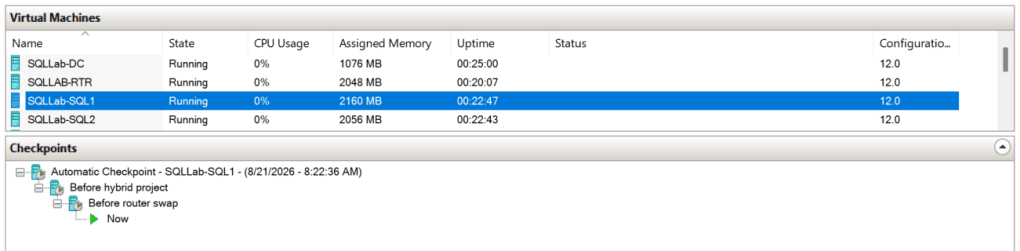
Name your checkpoints for the change they’re protecting.
Making Sure The Lab Won’t Expire Mid-Project
All of the OS editions running on these VMs are evaluation edition. Depending on when your lab was created, you run the risk of periodic restarts or shutdowns. So, to make sure that we’re in good shape, this is what to run to see how long is left on your OS eval:
cscript //nologo C:\Windows\System32\slmgr.vbs /dli
The output for me was 132 days left for all three VMs. If your DC is expired half way through this project, that would be a bad day. But we’re all good here.
The Azure CLI and MFA Gotcha I Hit
So, when I was first getting started on the Azure side of the house, I was leveraging the Azure CLI. The first thing to run is az login and that worked. However, az account list came back with no subscription. The reason why this happened was because the tenant requires MFA and the general sign-in skipped the MFA prompt. The workaround was to sign in to the tenant directly which then triggered MFA. So just explicitly provide the tenant ID if it requires MFA to sign in:
az versionaz login --tenant <tenant id>az account list -o table
Oh, and just as an FYI, in Windows PowerShell 5.1 the CLI’s warnings show up as red NativeCommandError text. They will look like failures but aren’t. You can find your tenant ID in Microsoft Entra ID -> Overview.
A Subscription Of Its Own
Just like wanting to keep the network changes I make contained and not impact other things around it, I wanted to create a separate subscription just for this project and lab. A subscription is the billing and permission boundary in Azure. Having a dedicated one keeps your lab costs visible on their own and keeps lab mistakes away from anything else you run. Not to mention it keeps cleanup easy because you can cancel it at the subscription level. The general hierarchy to keep in mind is subscriptions -> resource groups -> resources.
I’ve also created this subscription as Pay-As-You-Go and called it HybridLab. I did all that in the portal, then pointed CLI at it.
az account set --subscription HybridLabaz account show --query name -o tsv
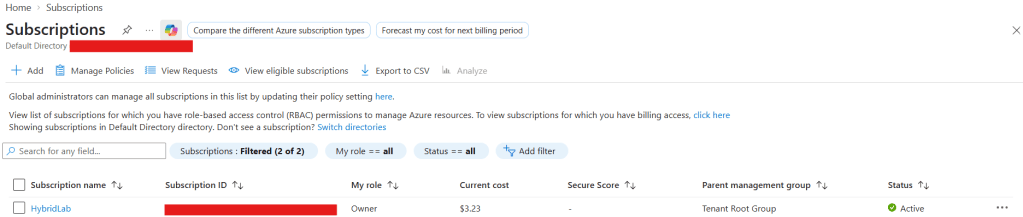
One subscription for this project and one place to look at the bill.
Budgets Will Warn But They Won’t Stop Spending
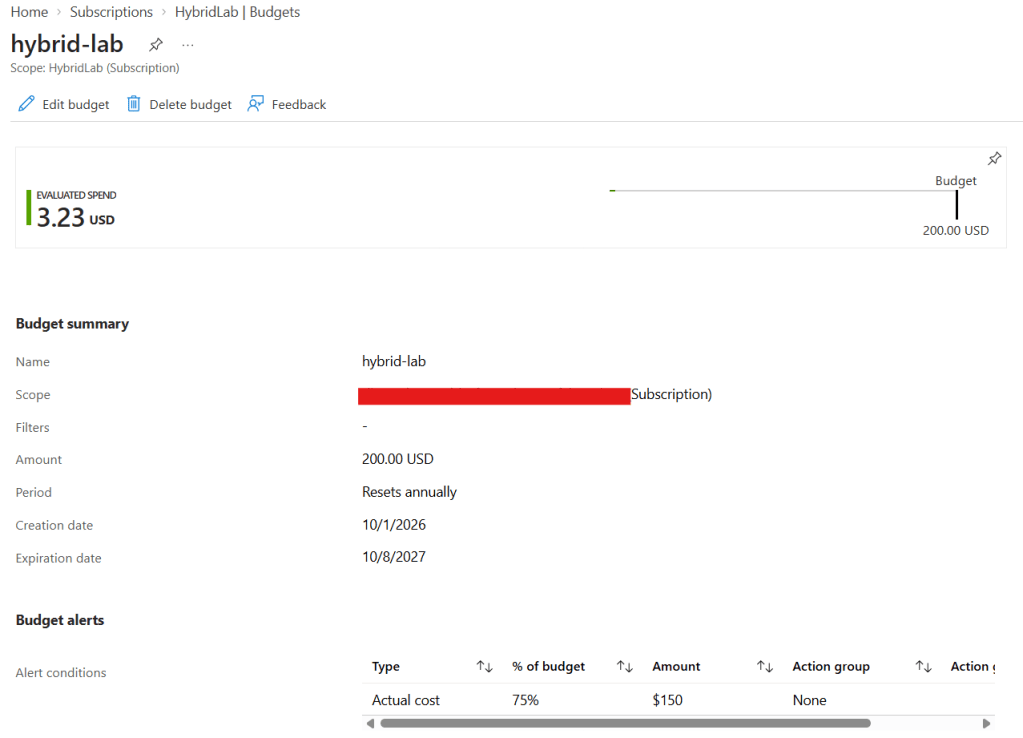
I wanted to set an annual budget on this subscription so I can get alerts when I hit certain spending thresholds. I set one at 75% to alert me with a $200 annual budget. We don’t get anywhere close near to that, but it is handy to create a budget for visibility and cost spending awareness around your subscriptions. This will send emails but does not turn anything off. What actually will save you money is completely deallocating (stopping) VMs between lab sessions. Part 10 has scripts that will do it for you.
How To Undo All Of This
If things go south and you need to scrap everything, just restore the “Before hybrid project” checkpoints. All three VMs together. For the Azure side, cancel the HybridLab subscription. Nothing else you own (other subscriptions) are affected which is the whole point of creating a separate subscription in the first place.
TL;DR
- The home lab lives on an internal Hyper-V switch which is its own address range, so the home network will never change.
- Checkpoint every VM before you start, that way you have something to rollback to.
- If az login finds no subscriptions, sign in with –tenant.
- A dedicated subscription limits the blast radius, and a budget will warn on spending limits but will not stop resource spending.
Next up will be Part 2, building an Azure landing zone that a DBA can read. Start back at Part 0 if you’d like to kick off this series from the beginning. If you’re a networking professional, infrastructure guru, or an Azure wizard, let me know your thoughts and feedback if you’d do this differently up to this point.


Leave a Reply