
As a DBA with on-prem and cloud experience, I feel confident in saying that I’m fairly well versed on the “DBA Domain” part of the shared responsibility model. However, if we really want to do our jobs right as data professionals, having an understanding of the entire infrastructure does wonders when it comes to making architectural decisions that can impact the entire system.
The struggle I’ve experienced being a DBA is that hearing things like “Entra ID” or “Microsoft Entra Domain Services” has me sitting in a position where I know of those things because I’ve been around it for years but not really having as deep of an understanding as I’d like to. In this post, I’m going to talk a bit about authorization, and authentication from the cloud perspective, specifically Azure, so that other fellow DBAs and data professionals can gain some insight, see what it looks like to operate in the Entra Admin Portal, and show that it’s not as overwhelming as I thought it would be.
Microsoft Entra ID: What It Is And What It Isn’t
So, I made the mistake thinking that Entra ID is a lightweight version of AD in the cloud. It’s not. We’ll get into what is in a second, but Entra ID is its own entity and service. First and foremost, the cool thing about it is that it is a tenant based fully managed service that MS gives you with each Azure subscription… FOR FREE. Can you believe that?! 😉
Entra ID is best used as an identity management and governance tool to allow your users to securely connect to your apps in azure. Rather than try to mentally own every single “here’s what it can do” point, here’s the ones that stood out to me as a DBA:
- Managing users and groups
- Single sign-on (SSO) to cloud apps
- Multi-factor authentication
- Conditional Access for users and devices
Read the full list from the documentation
Quick Facts About Entra ID
Every Azure subscription is tied to an Entra ID tenant. You can have one Entra ID tenant assigned to one or more subscriptions, but the subscription itself can only have one Entra ID tenant assigned to it at a time. This allows you to configure things once at a higher level and have the same identity management policies inherited to many subscriptions.
Coming from an on-prem environment where we heavily leverage Windows Active Directory Domain Services (AD DS), it’s crucial to know how these two tools contrast. Entra ID doesn’t have Organizational Units (OUs) like AD. You also can’t query it with LDAP like you would AD. Instead, you query it through the Microsoft Graph REST API over HTTPS. Another big one is that Entra ID isn’t built around Kerberos for authentication like AD is. It uses web based protocols like SAML, WS-Federation, and OpenID Connect for authentication, and OAuth for authorization. There are more differences that should be known, but for a comprehensive list, check out their documentation.
Remember how I said Entra ID is free? Well it is, but to unlock the cool features, you’re gonna have to pay to play. There’s two different plans you can go with that offer different levels of features to enhance your security posture. Those are P1 and P2. Again, not going to regurgitate MS documentation here so feel free to read up on it.
What If I Need Something Closer To AD DS?
Another interesting tool to talk about is Microsoft Entra Domain Services. In a previous section I mentioned I thought that Entra ID was a lightweight version of AD. It’s not. However, Microsoft Entra Domain Services is, and it’s a solid option when you’ve got apps that still need traditional AD stuff like Kerberos and LDAP. Now, here’s the part that took another pass for me to understand. Entra Domain Services is NOT your on-prem domain living in the cloud. It’s its own separate managed domain that syncs one way from Entra ID. So if your on-prem AD syncs to Entra ID with Entra Connect, those users flow into Entra DS, but by default, a VM you join to Entra DS isn’t joined to your corporate domain. You also can’t manage it like you would your own DCs. And if you want your on-prem users to be able to sign in with their normal passwords, you’ll need password hash sync turned on in Entra Connect. Typical ways you could approach getting your domain in the cloud is by either deploying replica DCs in Azure as VMs or by having a VPN connected between your local domain and Azure. Both of these come with their own overhead. With just a VPN, every auth request from your Azure resources has to travel back over the VPN to your on-prem DCs. With replica DCs in Azure, auth stays in Azure, but now you’re managing and maintaining those VMs, and your AD replication is going over the VPN instead.
With Entra Domain Services, you don’t have to manage any VMs, and you don’t have to manage any AD replication. You can still use Kerberos auth, and LDAP queries as you would on-prem. But, it isn’t a silver bullet. There are some tradeoffs. Like I said, this is a lightweight version of AD and a good amount of the core schema is stripped from this service.
- Only the base computer Active Directory object is supported.
- It’s not possible to extend the schema for the Microsoft Entra Domain Services domain.
- The organizational unit (OU) structure is flat and nested OUs aren’t currently supported.
- There’s a built-in Group Policy Object (GPO), and it exists for computer and user accounts.
- It’s not possible to target OUs with built-in GPOs. Additionally, you can’t use Windows Management Instrumentation filters or security-group filtering.
(The above is from MS documentation)
Seeing Some Of This In Action
I could spew off documentation, features, and other easily researchable facts to you all day. But I want to take this a step further by giving you some screenshots as to what it looks like to navigate around in the MS Entra Admin Center, as well as tie it back to the DBA mental model we already are familiar with.
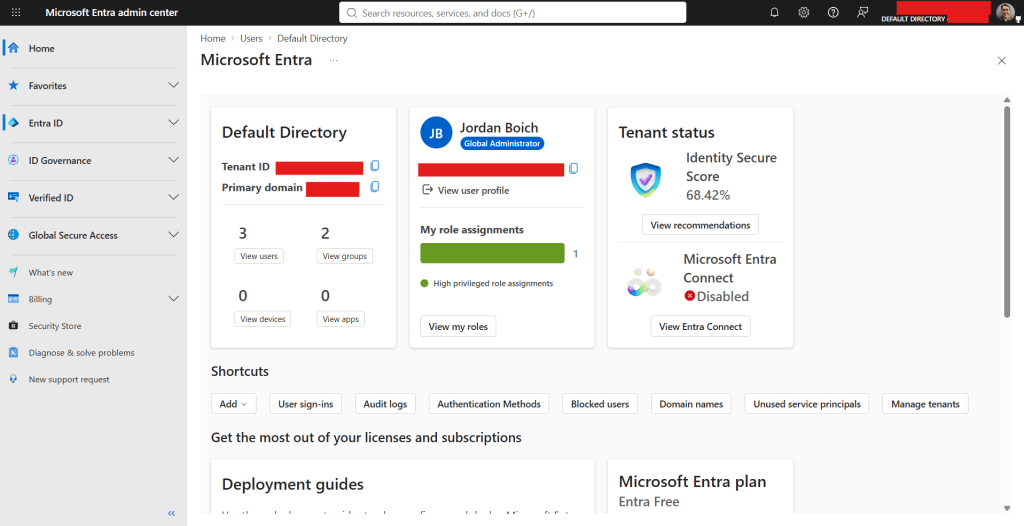
Here’s what the landing page looks like when I go to the Entra admin center. you get some cool dashboards that give you some insight about your Entra tenant.
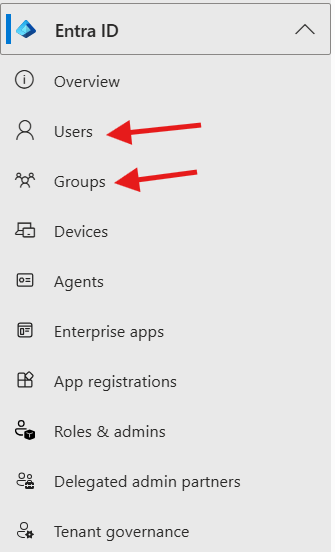
The Users and Groups tabs are where I’m going to draw some analogies for us DBAs. Same as SQL Server, it’s best security practice to create groups and put users in those groups for ease of administrative management. Groups are pretty cool here. You can either have Assigned groups that are manually managed, meaning you’re responsible for the users being added and removed from those groups, or you can have Dynamic Groups. These are nice because you can set up conditional rules to have users added or removed automatically based on conditional parameters be it the department they’re in, job title, etc. Heads up though, dynamic groups need at least Entra ID P1. You’ll notice my tenant in the screenshots is on Entra Free, so this is one of those pay to play features I was talking about.
Custom security attributes can also be created to further fine-tune the conditions that will result in a user being in a specific group or not. So, all of this to say that it’s equivalent for us DBAs to think of users and groups like we do with SQL Server, there are just some extra features that come with Entra ID management too.
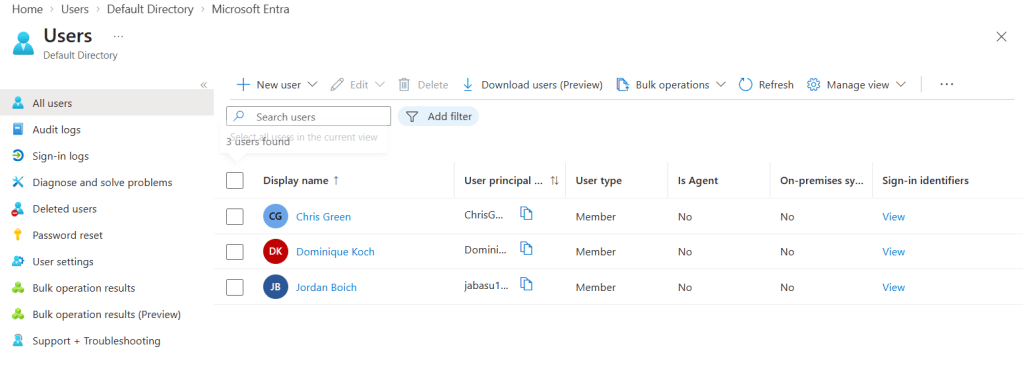
Creating users is straightforward as everything in the portal is pretty self explanatory. Users that are deleted are retained in the “Deleted users” tab for 30 days before they’re permanently deleted and can be fully recovered within that time frame for full access restore.
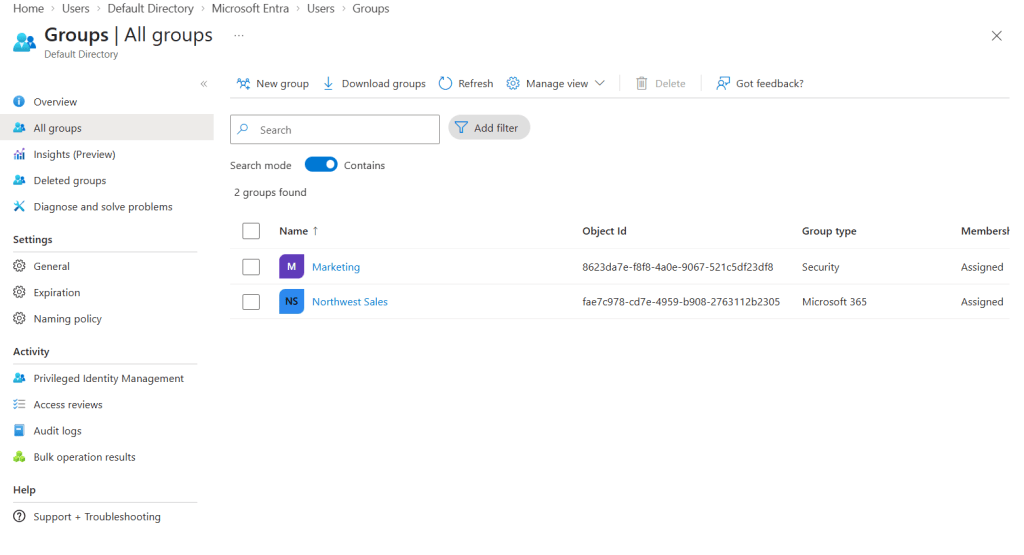
Groups are also easily created and managed within the portal too. These groups can have assigned properties that allow their members to have access and permissions to subsequent Azure resources.
As a DBA, I was able to draw the full circle connection from all of this. These aren’t just “like” SQL Server groups. You can actually use them as logins. Azure SQL Database, Managed Instance, and SQL Server 2022 (through Azure Arc) all support Entra ID authentication, so you can do something like this for MI:
CREATE LOGIN [Marketing] FROM EXTERNAL PROVIDER;
Or something like this for Azure SQL DB:
CREATE USER [Marketing] FROM EXTERNAL PROVIDER;
Same idea as adding an AD group as a login on-prem. Put users in the group, grant the group access, and let group membership do the work.
TL;DR
Azure has some pretty powerful, flexible, and comprehensive tools that help you manage access and identity management to Azure resources. There are several avenues you can go down and leverage to satisfy your domain authentication and authorization needs based on your requirements. Just need identity management for your web-based apps? Entra ID should take you pretty far. Need AD style stuff like Kerberos, LDAP, and domain join without running your own DCs? Go with Entra Domain Services. Need a full-fledged solution that will be more a 1:1 of what you experience today? Deploy an Azure VM and install the AD features and add it as a replica to your on-prem DC collection. Knowing how this piece of the puzzle fits into your existing architecture will greatly improve your overall understanding of the connective flow from an end-to-end perspective of your systems.


Leave a comment