
I ran into an interesting issue a while back while trying to seed a database in an Availability Group via automatic seeding. I wanted to share the experience, found error, and resolution. Hopefully this can help someone who is facing a similar issue.
Now, before we get started, for large databases across slow or multi-subnet networks, manual seeding is generally the better call. But, if you find yourself auto seeding a large database with slow network, this could help you out when things go bump.
The Problem
While trying to seed a multi terabyte database, I ran into an issue while the auto seeding process was going through its final tasks when joining the database to the AG. During the process, due to the size, and the fact that we were multi subnet with slower network, I could see that SQL was slow in completing its final join steps. Just when I thought seeding was done, I saw that the database was still in a Restoring state on the secondary. I looked in the SQL Logs on the secondary and found these errors:
Message
The remote copy of database “Database Name” has not been rolled forward to a point in time that is encompassed in the local copy of the database log.
Message
The database ‘Database Name’ is marked RESTORING and is in a state that does not allow recovery to be run.
My Initial Troubleshooting
Confused, I thought that this must be some sort of weird error or a one-off issue and I made the mistake of trying to re-seed the database again (I know. For those of you facepalming yourself right now, looking back I would give myself a hard time too). After waiting for seeding to complete, same issue.
Let me walk you through the steps I took to re-create this in my own lab environment and the resolution to fixing this problem. Spoiler alert: don’t re-seed the database.
Replicating The Problem
So, it’s a bit hard to replicate this issue as the main contributors to this issue were auto seeding a large database and slow network across a multi subnet cluster with an AG sitting on top of it replicating to multiple data centers. But thanks to trusty PowerShell, I could get this to replicate by hitting the seeding database with many transaction log backups, one after the other.
I’d like to make a quick note. Log backups occurring during auto seeding aren’t a bad thing. However, depending on when they run, they can cause you problems.
So, I’m starting off with a two replica AG, both running SQL Server 2025 Developer Edition (Enterprise Edition). I have one database called SeedingTest that is going to be our test subject. I created the database and took a full backup. This issue can be replicated on any version of SQL that supports Availability Groups and automatic seeding but I’m just using 2025 for this demo.
Now, in order to replicate this, I had to try and sneak in a transaction log backup while the auto seeding process was wrapping up and trying to join the database to the AG. What better way to do that than with PowerShell. Here’s the script I used and the steps I took to get this issue to take:
$backupPath = "D:\SQLBackup"$i = 0while ($true) { $i++ $filename = "$backupPath\SeedingTest_log_$i.trn" Invoke-Sqlcmd -ServerInstance "SQLLAB-SQL1" -Query " BACKUP LOG SeedingTest TO DISK = '$filename' WITH NOFORMAT, NOINIT, STATS = 1 " Start-Sleep -Milliseconds 50}
Please note that if you’re going to run this in a lab environment, or any environment for that matter, please do not leave this running for an extended period of time as it takes a transaction log backup of your database every 50 milliseconds.
Next, I staged the database to be added to the AG by going through the GUI in SSMS. Right clicking the AG -> Add Database… Before I hit Finish, I started my PowerShell script above, hit Finish in the add database wizard, let the PowerShell run for a few more seconds after the GUI told me that the database add was complete and then stopped it. Here’s what I was left with:
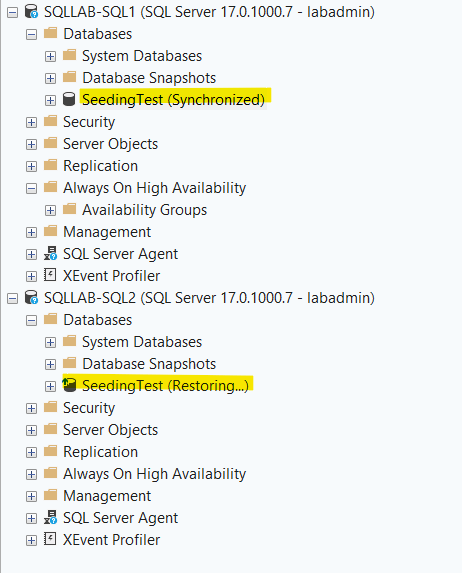
And here’s what I see in the SQL Logs on SQLLAB-SQL2:
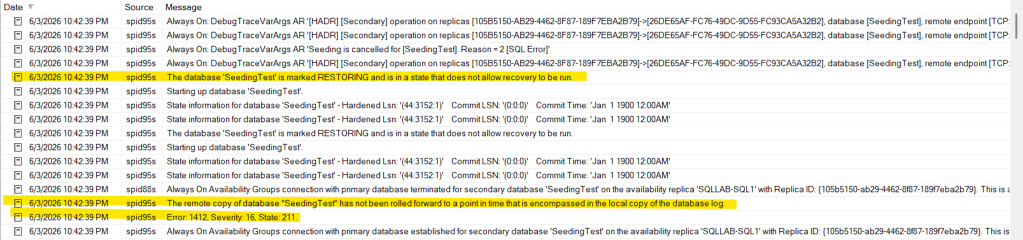
What Happened?
When a database is being auto seeded in an AG, log backups can occur normally without issue. The nice thing about auto seeding is that it will attempt to catch the database replica up with the primary before it joins it to the AG. The key word there is attempt. If a transaction log backup occurs while SQL is trying to join the replica database to the AG, you’ll get the error messages above. This can happen when there is latency combined with a large active database, or some degraded performance resulting in the join process to take longer than expected all the while a transaction log backup sneaks in before the database can be joined.
How To Fix It
The fix is straight forward. You’ll have to manually catch the secondary database up with the primary by applying any transaction log backups taken during or after the join attempt happened. For me, there are quite a few because I had log backups running every 50 milliseconds to try and force this issue to happen. If you have log backups running every 50 milliseconds in your production environment, I have no words for you.
Anyways, when you’re dealing with this in production, it can be kind of overwhelming. So, here’s a script I use and would like to share with you that looks at the last hardened lsn of the database in the AG and will dynamically generate the syntax for you to restore the necessary logs to the secondary replica database in order to join it (run this on the primary replica):
DECLARE @DatabaseName NVARCHAR(128) = 'SeedingTest'DECLARE @HardenedLSN NUMERIC(25,0)SELECT @HardenedLSN = last_hardened_lsnFROM sys.dm_hadr_database_replica_states drsJOIN sys.databases d ON drs.database_id = d.database_idWHERE d.name = @DatabaseName AND drs.is_local = 0SELECT bs.backup_set_id, bs.backup_start_date, bs.first_lsn, bs.last_lsn, bmf.physical_device_name AS backup_file, ROW_NUMBER() OVER (ORDER BY bs.backup_start_date) AS apply_order, 'RESTORE LOG ' + QUOTENAME(@DatabaseName) + ' FROM DISK = ' + QUOTENAME(bmf.physical_device_name, '''') + ' WITH NORECOVERY, STATS = 10' AS restore_commandFROM msdb.dbo.backupset bsJOIN msdb.dbo.backupmediafamily bmf ON bs.media_set_id = bmf.media_set_idWHERE bs.database_name = @DatabaseName AND bs.type = 'L' AND bs.last_lsn >= @HardenedLSNORDER BY bs.backup_start_date ASC
When I run it, here’s what was output:
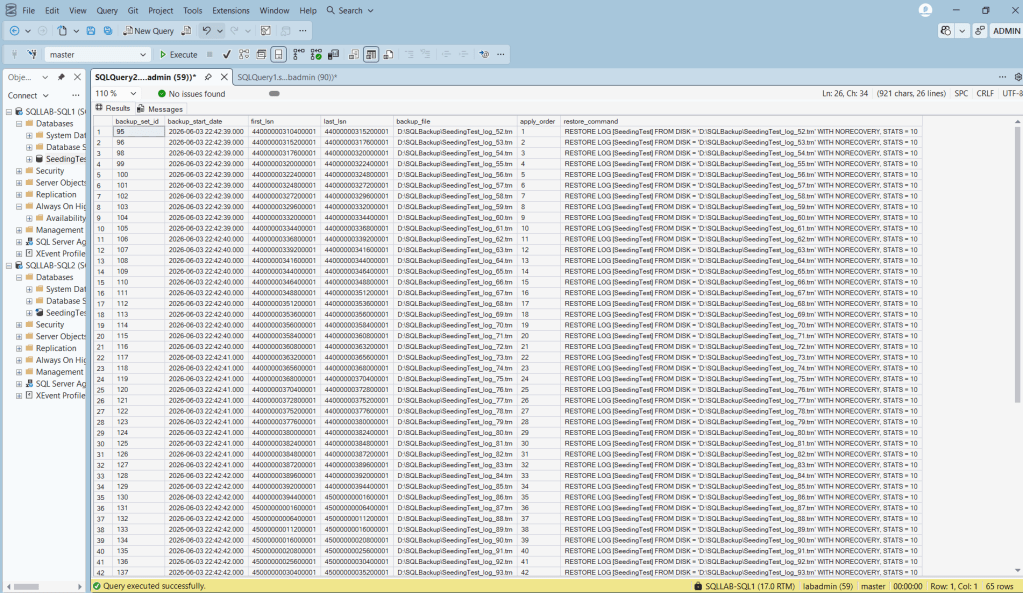
Then, looking at the right most column, you can see all of the dynamically generated syntax that I need to run on the secondary replica to catch the database up. So, I just copy / paste all that code in the right most column and run it on the secondary. Note that it applies all of the log backups with NORECOVERY and leaves the database in a Restoring state. We need to have it stay in a Restoring state in order to join it to the AG. Make sure your log backup files are accessible from the secondary replica before running the restore commands. If they live on the primary’s local drive you’ll need to copy them to the secondary or a shared location first.
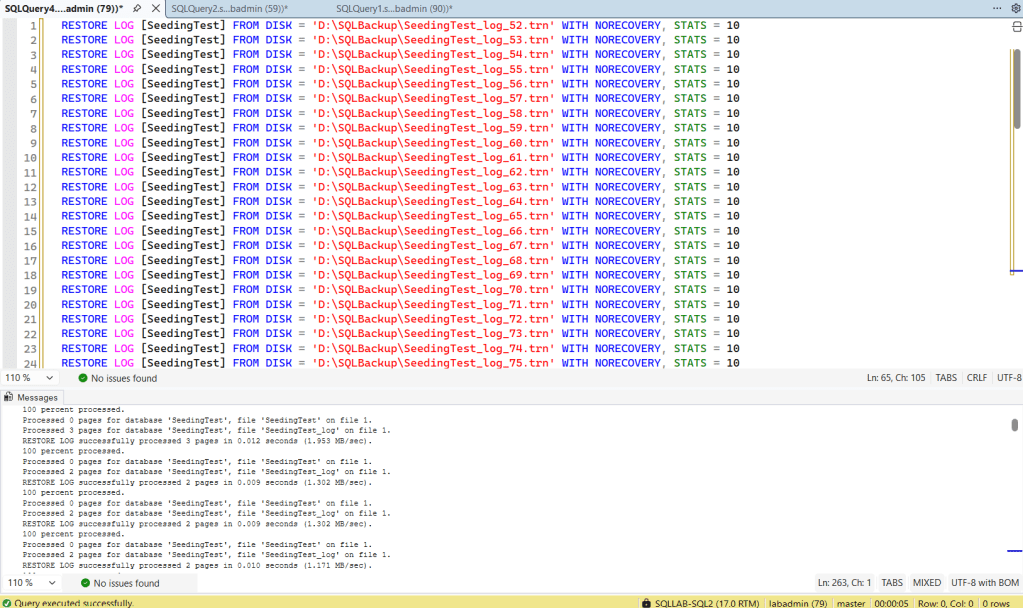
This is just a partial screenshot as I had a lot of logs to apply to the secondary, but this is what the end result looked like after applying all of the logs. Another side note, I had the log backups run to the local D:\ drive on SQLLAB-SQL1, so I had to copy / paste the .trn files to the D:\ drive on SQLLAB-SQL2 in order to restore them.
The Result
After applying the log backups, complete the following steps.
Step 1: Connect To The Secondary Replica
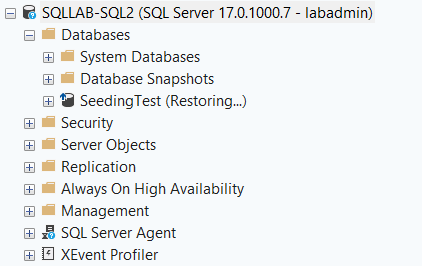
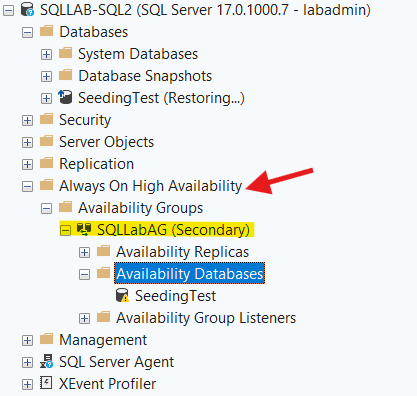
Step 2: Expand Always On High Availability -> Availability Groups -> AG Name -> Availability Databases
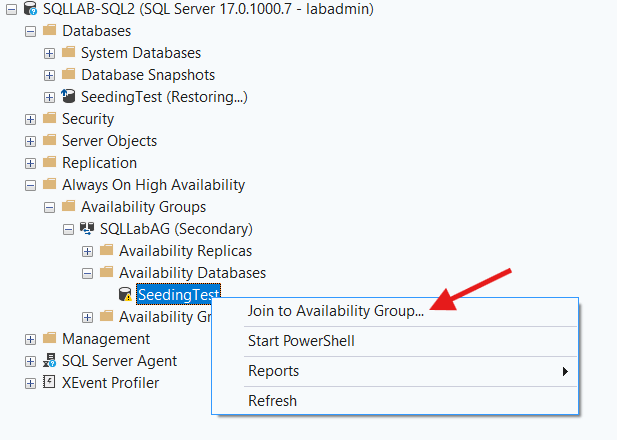
Step 3: Right Click On The Database -> Join To Availability Group…
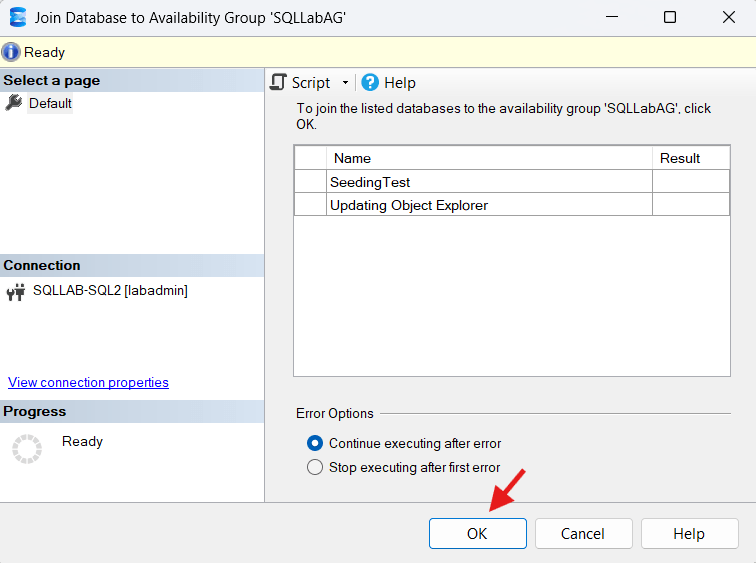
Step 4: Click OK In The Join Database GUI
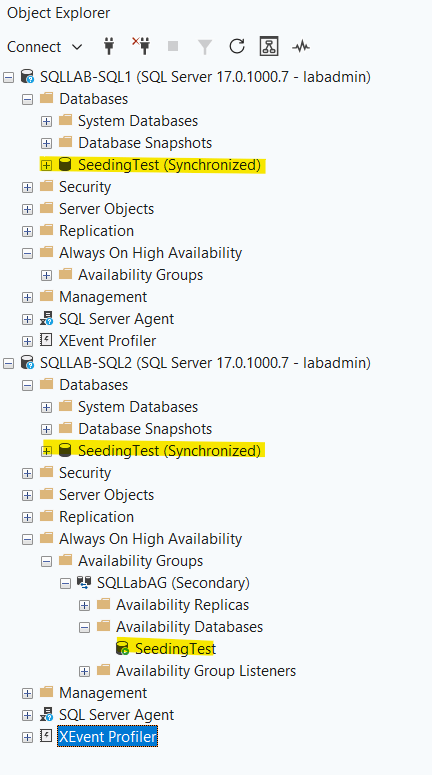
Then, you’ll be left with a happy AG, and a happy database:
The TL;DR For The On-Call DBA
If you’re panicking right now, first thing’s first, take a deep breath. It’s an easy fix. Here’s the quick step-by-step to get you back to a healthy spot:
Step 1: Run this query against your primary replica to get the list of transaction logs you need to apply to your secondary database to catch it up:
DECLARE @DatabaseName NVARCHAR(128) = 'SeedingTest'DECLARE @HardenedLSN NUMERIC(25,0)SELECT @HardenedLSN = last_hardened_lsnFROM sys.dm_hadr_database_replica_states drsJOIN sys.databases d ON drs.database_id = d.database_idWHERE d.name = @DatabaseName AND drs.is_local = 0SELECT bs.backup_set_id, bs.backup_start_date, bs.first_lsn, bs.last_lsn, bmf.physical_device_name AS backup_file, ROW_NUMBER() OVER (ORDER BY bs.backup_start_date) AS apply_order, 'RESTORE LOG ' + QUOTENAME(@DatabaseName) + ' FROM DISK = ' + QUOTENAME(bmf.physical_device_name, '''') + ' WITH NORECOVERY, STATS = 10' AS restore_commandFROM msdb.dbo.backupset bsJOIN msdb.dbo.backupmediafamily bmf ON bs.media_set_id = bmf.media_set_idWHERE bs.database_name = @DatabaseName AND bs.type = 'L' AND bs.last_lsn >= @HardenedLSNORDER BY bs.backup_start_date ASC
Make sure your log backup files are accessible from the secondary replica before running the restore commands. If they live on the primary’s local drive you’ll need to copy them to the secondary or a shared location first.
Step 2: Run the generated restore syntax against your secondary replica server (make sure to leave the database in a Restoring state).
Step 3: Join the secondary database to your AG by connecting to your secondary replica and doing the following:
Expand Always On High Availability Folder -> Your AG Name -> Availability Databases -> Right click on the database with the yellow warning symbol next to it -> Click Join To Availability Group…
Step 4: When the Join Database GUI pops up, just hit OK.


Leave a comment