
Diversify your Toolbelt
As a DBA, it is important to know more than one way to skin a cat. With all of the options out there to setup and cutover log shipping, for me, PowerShell and the use of the open source dbatools module has come in handy to seamlessly setup and cutover log shipping for one or more databases on a server. The demo and scripts I’ll provide here are going to set up log shipping with the default configurations. Transaction logs will be backed up and applied to the log shipped databases every 15 minutes.
Prerequisites and Assumptions
This demo assumes you have a basic understanding of log shipping and PowerShell, as well as familiarity with the open source dbatools module. If not, I suggest first starting here.
Before you begin, please take note of the following prerequisites:
1. You must make sure that the service account running SQL Server Agent and the SQL Server database engine on both the source and destination server has full control on the shared backup path. (At least read/write if people are stingy.)
2. You must make sure that your account has full control over the file share path.
3. Adjust t-log backups if needed (Full and Diffs can stay on regardless if native or 3rd party).
a) If t-logs on the database are being taken via Ola Hallengren Jobs, then you don’t have to do anything, Ola is smart enough to account for that.
b) If they are native or 3rd party transaction log backups, then you need to have them turned off on the source server only.
4. Databases being log shipped need to be in FULL recovery model.
The Setup
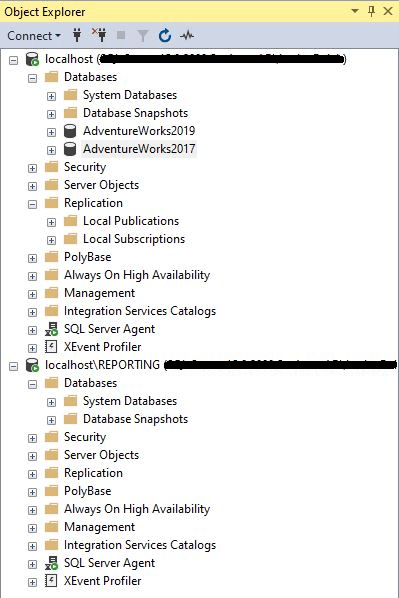
For this demo, I’ll be using two instances of SQL Server installed on the same machine. The source SQL instance will be called localhost, and the destination SQL instance will be called localhost\REPORTING. I’ll be log shipping two databases: AdventureWorks2019 and AdventureWorks2017:
I’ll also be utilizing PowerShell 5 and running the most updated version of the dbatools module, which at the time of writing this, is 2.1.5.
Step 1: Configure your PowerShell Session Security Configuration
Most times when running dbatools cmdlets in a new PowerShell session, you’ll run into the following error:

If you do, you’ll need to run the following to set your security configuration for your session to trustworthy. Do this by running the following in your PowerShell session:
#Must first run this code to make sure that you don't run into security issues.
Set-DbatoolsConfig -FullName sql.connection.trustcert -Value $true
Step 2: Set up your Log Shipping Parameters
Time to set up some parameters that will be used for our log shipping script. Here’s the template you can use to set up your parameters:
#Setting up log shipping parameters
$SourceSqlInstance = "Source SQL Instance Name"
$DestinationSqlInstance = "Destination SQL Instance Name"
$Database = "Database1", "Database2"
$SharedPath = "\\SharedPathName"
$CopyDestinationFolder = "\\SharedPathName"
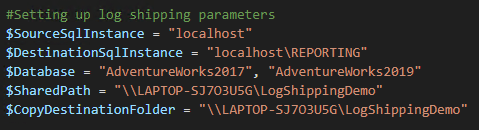
For this demo, mine looks something like this:
Step 3: Deploy Log Shipping
Now it’s time to deploy log shipping for the two databases we want using the parameters we set up. This can be done by using the following template:
#Deploying log shipping.
$params = @{

    SourceSqlInstance = $SourceSqlInstance
    DestinationSqlInstance = $DestinationSqlInstance
    Database = $Database
    SharedPath = $SharedPath
    CopyDestinationFolder = $CopyDestinationFolder
    GenerateFullBackup = $true
}

Invoke-DbaDbLogShipping @params
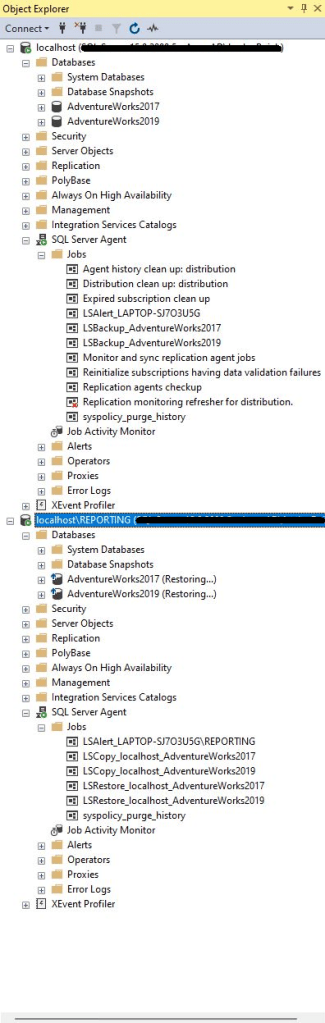
You should be able to run the above code and PowerShell will use the dbatools cmdlet “Invoke-DbaDbLogShipping” to set up log shipping for the databases specified. This will generate a full backup of the databases specified, put that backup in the shared path provided, then restore that full backup to the destination server and leave the database(s) in a Restoring state so more transaction logs can be applied to it. This will also set up all of the log shipping related jobs on the source and destination server. As you can see below, after running the above log shipping and the associated jobs were set up successfully:
Cutting Over Log Shipping
Now, with this set up, transactions can be log shipped from the source databases to the secondary databases. In the event that you need to cut over the databases, be it for bringing them up on your DR site, or it’s cutover day for a migration, this can be accomplished with a few lines of code.
Step 1: Set the Source Databases to Read Only
The first thing you’ll want to do is set the source databases to either Read-Only mode, or set them Offline. The reason for this is so no new transactions are written to those databases when you’re cutting over. In this demo, I’ll be setting the databases to Read-Only. This can be done by running the following:
#Set source databases to read only.
Set-DbaDbState -SqlInstance $SourceSqlInstance -ReadOnly -Database $Database #-AllDatabases for all databases on the server.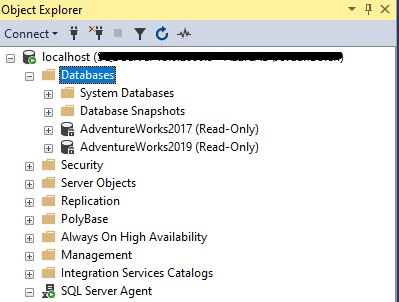
Step 2: Recover the Database(s) on the New Server
Next up is to recover the databases on the new server so that they can be in Read-Write mode. The nifty cmdlet “Invoke-DbaDbLogShipRecovery” will do this for us. What it’ll do is take one last log backup of the source database, apply any new transactions to the destination database, bring that database online, and then disable any of the necessary log shipping jobs. Here’s the code to run:
#Recover database(s) on new server.
Invoke-DbaDbLogShipRecovery -SqlInstance $DestinationSqlInstance -Force #The -Force parameter restores all LS databases on a server.#-Database "Database1", "Database2"
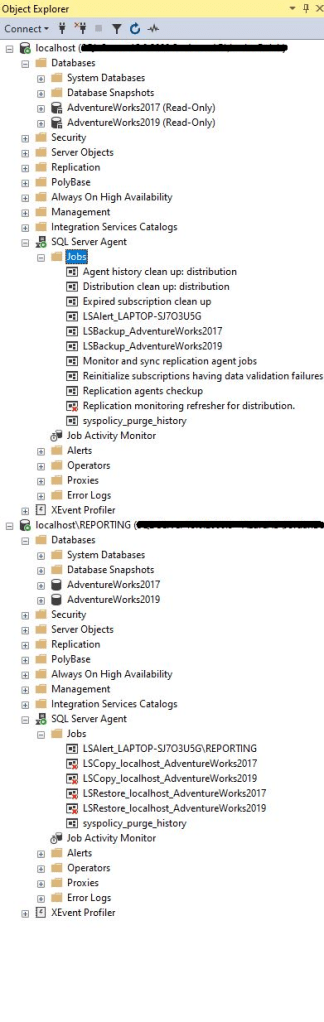
As you can see, this cmdlet seamlessly recovered our log shipped databases and disabled all copy and restore jobs on the destination server:
Step 3: Remove Log Shipping
Last step here is to clean up log shipping. This can be done by running the following:
#Remove log shipping.
Remove-DbaDbLogShipping -PrimarySqlInstance $SourceSqlInstance -SecondarySqlInstance $DestinationSqlInstance -Database $Database
This will clean up all related log shipping objects for you.
Full Script
Here’s the full script all together in case you want a more cohesive example to expand on should you wish:
#Prerequisites before you begin log shipping:
<#
    1. You must make sure that the service account running SQL Server Agent and the Database Engine on both the source and destination server has full control on the shared backup
    path. (At least read/write if people are stingy.)

    2. You must make sure that your account has full control over the file share path.

    3. Adjust t-log backups if needed (Full and Diffs can stay on regardless if native or 3rd party).
        a) If t-logs on the database are being taken via Ola, then you don't have to do anything, Ola is smart enough to account for that.
        b) If they are native or 3rd party backups, then you need to have them turn it off on the source server only.

    4. Databases being log shipped need to be in FULL recovery model.
#>

#Must first run this code to make sure that you don't run into security issues.
Set-DbatoolsConfig -FullName sql.connection.trustcert -Value $true

#Setting up log shipping parameters
$SourceSqlInstance = "Source SQL Instance Name"
$DestinationSqlInstance = "Destination SQL Instance Name"
$Database = "Database1", "Database2"
$SharedPath = "\\SharedPathName"
$CopyDestinationFolder = "\\SharedPathName"
#Deploying log shipping.
$params = @{

    SourceSqlInstance = $SourceSqlInstance
    DestinationSqlInstance = $DestinationSqlInstance
    Database = $Database
    SharedPath = $SharedPath
    CopyDestinationFolder = $CopyDestinationFolder
    GenerateFullBackup = $true
}

#Deploying log shipping with the above parameters.
Invoke-DbaDbLogShipping @params

#####Run the following on cutover day#####

#Set source databases to read only.
Set-DbaDbState -SqlInstance $SourceSqlInstance -ReadOnly -Database $Database #-AllDatabases for all databases on the server.

#Recover database(s) on new server.
Invoke-DbaDbLogShipRecovery -SqlInstance $DestinationSqlInstance -Force #The -Force parameter restores all LS databases on a server.#-Database "Database1", "Database2"

#Remove log shipping.
Remove-DbaDbLogShipping -PrimarySqlInstance $SourceSqlInstance -SecondarySqlInstance $DestinationSqlInstance -Database $Database
Summary
You did it! You set up log shipping using PowerShell and the dbatools module. This script can be more than expanded on to satisfy your specific need, however, this can definitely suffice for setting up a migration, cutting over your log shipped databases, and much more related to log shipping. Please always remember to test your code in a non production environment before running it in production.
 DBA Unfiltered
Leave a comment