The Scenario
You get a request from the business to remove a single table (article) from a publication because a large amount of development work has to be done against that object. Because of the large size of the publication, you need to figure out a way to remove, then add back the impacted article to the replication topology without the need of an entire re-snap of every article. Doing this will minimize the level of disruption for users, as when the time comes to perform a snapshot, a snapshot will only be taken for the single article, not every article in the publication.
The Setup
For this example, I am going to be using two installs of SQL Server on the same machine; one being a default instance and the other being a named instance called “REPORTING”. The default instance will act as the publisher and have a local distributor while the “REPORTING” instance will act as the subscriber. All instances are running SQL Server 2019 Developer Edition, but this should work for any version of SQL that supports replication. The type of replication topology I will be using is transactional replication. I will also be using the AdventureWorks2019 database that can be found here.
Removing a Single Article From Replication
So we’ll start this scenario with removing a single article from replication so the developers can do their work to it without impacting the health of the publication. All scripts in this post should be ran on the publisher.
Step 1: Drop the article on the subscriber side
USE [AdventureWorks2019]
GO
EXEC sp_dropsubscription
@publication = 'MyTestPublication',
@subscriber = 'LAPTOP-SJ7O3U5G\REPORTING',
@article = 'Person'
GO
Step 2: Drop the article from the publication and force invalidate the snapshot
USE [AdventureWorks2019]
GO
EXEC sp_droparticle
@publication = 'MyTestPublication',
@article = 'Person'
,@force_invalidate_snapshot = 1
GO
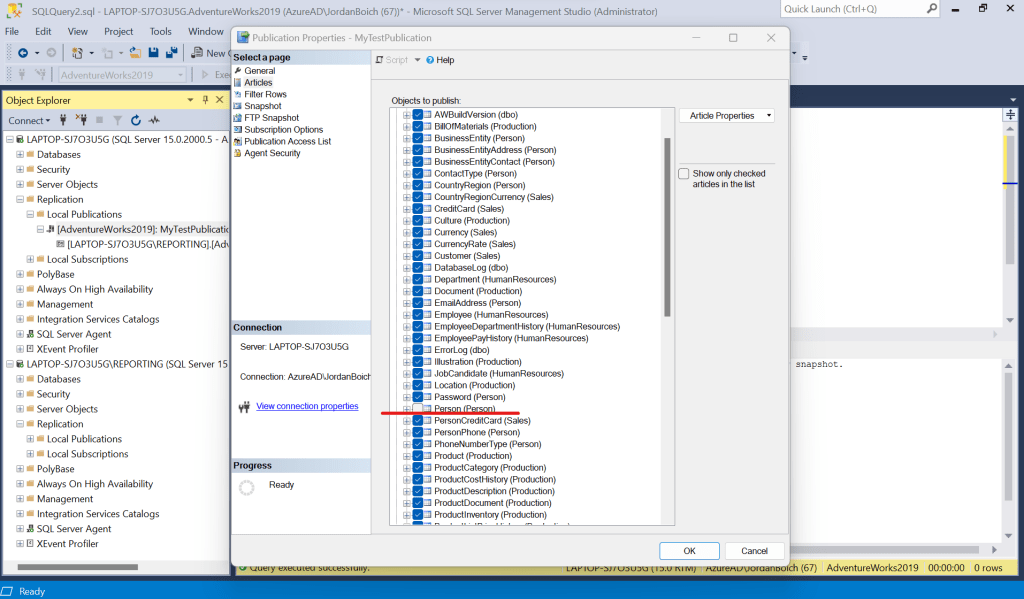
We need to invalidate the current snapshot manually by supplying this parameter. If we don’t we’ll get an error to the effect of “Cannot make this change because a snapshot is already generated…”. Setting @force_invalidate_snapshot = 1 forces SQL to proceed with the drop. The same type of thing happens if you try to uncheck the article in the publisher properties except it just asks for confirmation that you want to proceed. As you can see from the screenshot below, the Person article is now unchecked from the list of replicated articles:
Adding a Single Article Back to Replication
After the work is completed on the removed article (in our case it was the Person table), the business needs you to add it back. This is where the real magic comes in. Completing the following steps will just take a snapshot for the single article added, and not cause a need for an entire re-snap of every article in the publication.
Step 1: Set allow_anonymous to false on the publication
USE [AdventureWorks2019]
GO
EXEC sp_changepublication
@publication = N'MyTestPublication',
@property = N'allow_anonymous',
@value = 'FALSE'
GO
Here, we set the publication property allow_anonymous to false because the next step (altering immediate_sync) can only be set to FALSE if allow_anonymous is set to FALSE.
Step 2: Set immediate_sync to false on the publication
USE [AdventureWorks2019]
GO
EXEC sp_changepublication
@publication = N'MyTestPublication',
@property = N'immediate_sync',
@value = 'FALSE'
GO
Setting immediate_sync to FALSE makes it so the subscribers cannot receive the sync files until the snapshot agents are started and completed.
Step 3: Adding the single article to the publication
USE [AdventureWorks2019]
GO
EXEC sp_addarticle
@publication = N'MyTestPublication',
@article =N'Person',
@source_object =N'Person',
@source_owner = N'Person',
@force_invalidate_snapshot=1
GO
This will allow us to add the Person table back to the replication topology and at the same time invalidating the current snapshot so that we can push over a new one with just this table. An unfiltered comment from me:
I was ripping my hair out going through this demo myself. The reason for that is because the Person table in the AdventureWorks2019 database does not have a dbo schema. The Person table has a Person schema. So, it’s Person.Person. When using sp_addarticle, if the table or object you’re trying to add has something other than a dbo schema, you must add the @source_owner parameter as shown above and specify the schema. Otherwise, when trying to execute this without that parameter, SQL will yell at you saying “The [table] doesn’t exist in the database.” Bull$#%@!!! I am looking at it right now! I was sitting here for hours going down a deep dive rabbit hole combing the internet trying to figure out why, oh why I was in this nightmare.
Step 4: Refresh the subscription on the publication
USE [AdventureWorks2019]
GO
EXEC sp_refreshsubscriptions @publication = N'MyTestPublication'
GO
Using this command, we can refresh all subscriptions for the new article we are about to push through.
Step 5: Start the snapshot agent in replication monitor
This step involves you needing to go to the replication monitor. This can be done by expanding the replication folder on the publishing server->Local Publications->Right click on your publication->Launch Replication Monitor. Once you’re in the Replication Monitor, you can expand the publishing server on the left hand side->Click on the publication->Navigate to the Agents tab->Right click on the Snapshot Agent-> Hit Start Agent. This will push over your newly added article. If you right click the Snapshot Agent and hit View Details, you should see something like the following:

As a quick side note, if you need to add multiple articles at once, you can repeat step 3 as many times as needed.
Phew! That was a lot, but you did it! At this point you have successfully removed and added back a single article to your replication topology. It is important to have this in your toolbelt as a DBA navigating through replication. Re-snapping an entire publication on a production server can lead to some costly performance hits. Being more granular with your approach when handling the removal and addition of a single article will save your servers in a lot of ways.
 DBA Unfiltered
Leave a comment